
Agent Space
Agent Space is the central dashboard for every agent you have built. View agents in card form, inspect their configurations, delete or export them, and jump straight into chats.
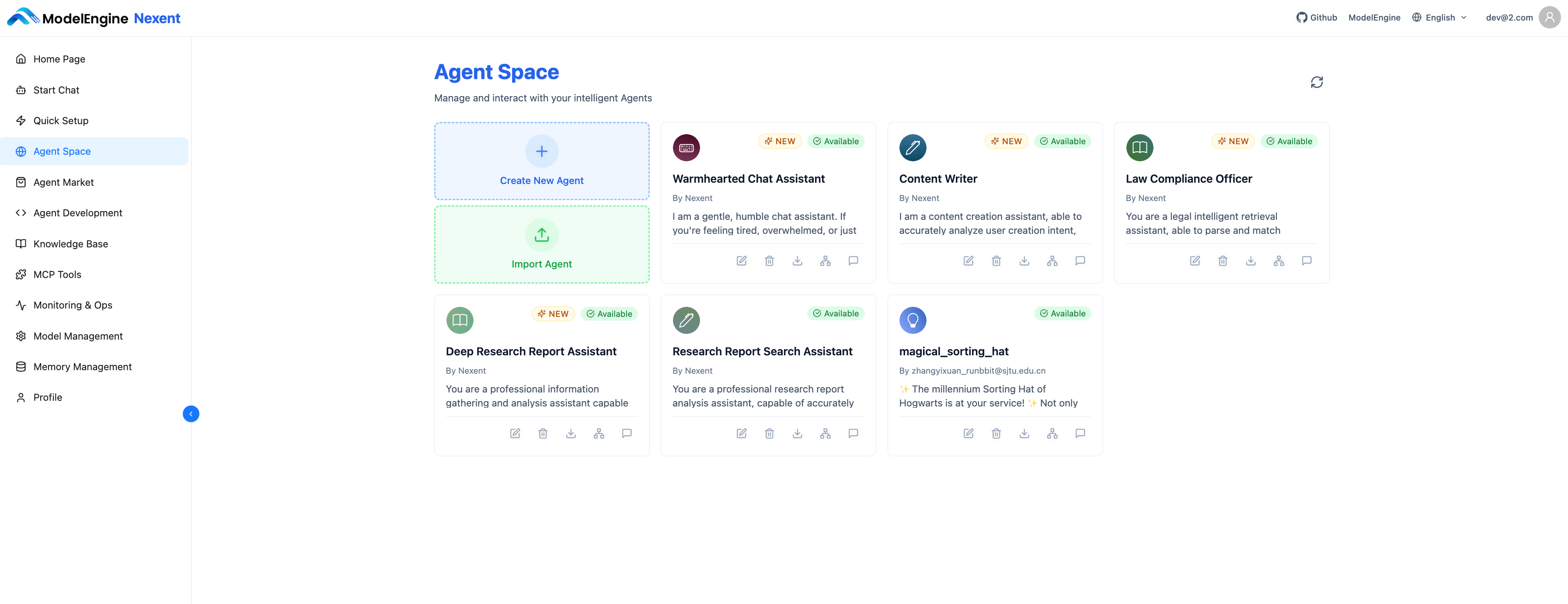
📦 Agent Cards
Each agent appears as a card showing:
- Icon – The agent’s avatar.
- Name – The display name.
- Description – A quick summary of what it does.
- Status – Whether the agent is available.
- Actions – Shortcuts for editing, exporting, deleting, and more.
🔧 Manage Agents
View Agent Details
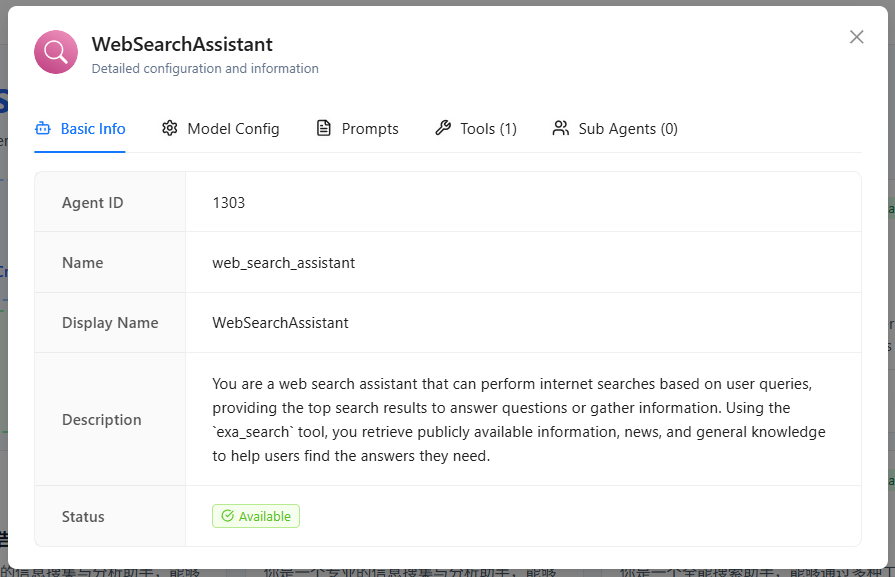
Click a card to open its details:
- Basic info: ID, name, description, status, max steps, and whether to provide run summary.
- Model configuration: Model name, business logic model, etc.
- Prompts: Role, constraints, examples, and the original description.
- Tools: Every tool the agent can use.
- Sub-agents: Any collaborative agents that are configured.
Edit an Agent
- Click Edit on the card.
- You’ll be taken to the Agent Development page.
- Adjust the settings and save—updates sync back to Agent Space automatically.
Delete an Agent
- Click Delete on the card.
- Confirm the deletion (this cannot be undone).
⚠️ Note: Deleting an agent permanently removes it. Export a backup first if you might need it later.
Export an Agent
- Click Export on the card.
- Nexent downloads a JSON configuration file you can import later.
Copy an Agent
- Click Copy on the card to duplicate the agent.
- This facilitates experimentation, multi-version debugging, and parallel development.
View Relationships
- Click View Relationships to see how the agent interacts with tools and other agents.
Jump to Chat
- Click Chat to open Start Chat with the agent already selected.
🚀 Next Steps
Once you finish reviewing agents you can:
- Talk to them in Start Chat.
- Continue iterating in Agent Development.
- Enhance retention with Memory Management.
Need help? Check the FAQ or open a thread in GitHub Discussions.