
Skill Management
A Skill is a core mechanism in Nexent for extending agent capabilities. Each skill packages multiple tools with usage documentation into a reusable unit of capability, enabling agents to handle complex tasks like assembling building blocks — without consuming excessive context space.
Table of Contents
- Skills vs. Tools: Understanding the core concepts
- Using Skills: How to use skills in agent development
- Skill Management: Create, edit, import, and export skills
- Skill Upload Guide: SKILL.md format, ZIP structure, special tags, and writing standards
- NL-to-Skill: Automatically generate skills from natural language descriptions
- Official Skills Overview: Built-in skills and their capabilities
The Relationship Between Skills and Tools
In Nexent, Tools and Skills are two distinct layers. Understanding their differences helps you configure agent capabilities more effectively.
A Tool is a single atomic operation the agent can call, such as read_file or tavily_search. When a tool is enabled for an agent, the LLM searches through the tool list on every turn — meaning even if a tool is completely unnecessary for the current conversation, the LLM still consumes context tokens to "see" it.
A Skill bundles the capabilities of multiple tools into a complete workflow, complete with parameter configuration and usage documentation via SKILL.md. The LLM does not need to "see" all tools in advance. Based on the user's actual needs, it decides whether to activate a skill. Only when activated does the system load the corresponding toolset — effectively saving Token consumption.
| Dimension | Tool | Skill |
|---|---|---|
| Granularity | Single atomic operation | Bundle of multiple tools + configuration + documentation |
| Token consumption | Occupies context on every turn | Loaded only when activated |
| Parameters | Fixed parameter schema | Customizable parameter templates |
| Versioning | No version management | Supports draft/published versions |
| Distribution | Code-level | ZIP package distribution, plug-and-play |
Analogy: Tools are individual items like a screwdriver, hammer, or saw. A Skill is a toolbox — with tools pre-matched for a work scenario and accompanied by usage instructions. Open the right toolbox for the task at hand.
Using Skills
Configuring Skills for an Agent
- Open the Agent Development page
- On the "Select Tools" tab, find the Skills group
- Click a skill name to select it; click again to deselect
- After selecting a skill, click the ⚙️ button next to it to configure skill parameters
- Save the agent configuration
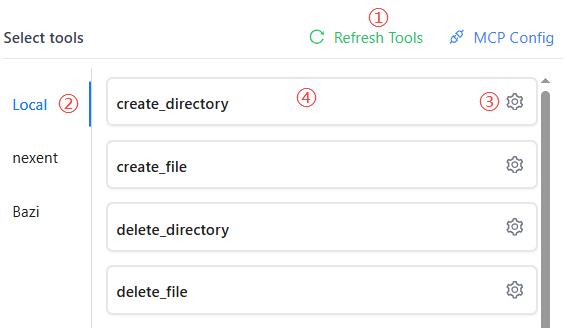
💡 Tip: If a skill has required parameters that are not configured, a guided parameter-filling prompt will appear upon selection.
Skill Parameters
Each skill's parameter definitions come from the config/schema.yaml file in the skill package. The configuration interface auto-generates a parameter form based on the schema, including:
- Parameter name and description (bilingual: English and Chinese)
- Required/optional markers
- Default values
- Parameter types (string, number, boolean, array, object)
- YAML comment auto-mapped tooltips
Skill Versions
Each skill supports multi-version management:
- Draft version (version=0): Development and debugging stage; changes take effect immediately
- Published version (version>=1): Production use; parameters are locked
When configuring the same skill for different agents, you can set different parameter values independently.
Skill Management
Viewing Installed Skills
The "Select Tools" skill group displays all installed skills, including:
- Official skills (
officialsource) - Custom skills (
customsource)
Creating Custom Skills
Nexent supports two ways to create custom skills: uploading a skill package file, or generating one automatically from a natural language description.
Method 1: Upload SKILL.md or ZIP
- Go to the skill configuration interface
- Click the "Upload Skill" button
- Select a
SKILL.mdfile (single file) or a.zippackage (complete skill package) - The system automatically parses and creates the skill
Method 2: NL-to-Skill Natural Language Creation
Click the "NL Create Skill" button on the skill management page. See the NL-to-Skill section below for details.
Editing Skills
- Find the target skill in the skill list
- Click the skill card to enter the edit page
- Modify the skill name, description, tags, parameter configuration, etc.
- Save changes
Importing/Exporting Skills
- Export: Click "Export" on the skill detail page to download as a JSON configuration file
- Import: Click "Import Skill" on the Agent Development page to upload a JSON configuration file
⚠️ Note: When importing skills containing knowledge base tools (such as
knowledge_base_search), these tools will only search knowledge bases that the currently logged-in user is permitted to access in this environment. The original skill's knowledge base configuration will not be automatically inherited.
Skill Upload Guide
Skill Package Structure
A skill can be a single file or a ZIP package containing multiple files:
skill-name/
├── SKILL.md              # Skill definition file (required)
├── config/
│   ├── config.yaml       # Default parameter values
│   └── schema.yaml        # Parameter types and descriptions
├── scripts/
│   └── *.py              # Python scripts
├── examples.md            # Usage examples
└── assets/                # Static assets
SKILL.md Format in Detail
SKILL.md is the core file of a skill, consisting of a YAML frontmatter section and a body section.
YAML Frontmatter (required)
The file must start with YAML frontmatter:
---
name: skill-name
description: |
  A description of what this skill does and when to use it.
  Write in third person.
tags:
  - tag1
  - tag2
---| Field | Required | Description | Example |
|---|---|---|---|
name | Yes | Skill name; English only, lowercase, hyphenated | github-repo-analyzer |
description | Yes | Skill function description; 1-3 sentences, include use case | This skill analyzes GitHub repositories and extracts key metrics |
tags | No | Skill tag list for categorization and search | ["code", "github", "analysis"] |
allowed-tools | No | List of allowed tools (all available by default) | [file_read, web_search] |
always | No | Whether to auto-activate on every turn (default: false) | false |
Body (optional)
Below the frontmatter, you can write Markdown content including usage instructions, best practices, example code, and more.
Two Skill Types
Based on their purpose, skills fall into two categories with different writing styles:
Tool Skills: Used to expose tool capabilities. The body should include tool parameter descriptions, usage examples, return formats, and error handling.
Agent Skills: Used to teach the agent how to perform a complex task. The body should include workflow instructions, domain knowledge, boundary conditions, and best practices.
config/schema.yaml: Defining Parameter Forms
If a skill requires user-supplied parameters, create a config/schema.yaml file. The system will auto-generate a parameter configuration form in the frontend based on this file.
param_name:
  type: string | number | boolean | array | object
  required: true | false
  default: <default value>
  description: "English description of the parameter"
  description_zh: "Chinese description of the parameter"
Supported types: string, number, boolean, array, object
Complete example:
query:
  type: string
  required: true
  description: "Search query string"
  description_zh: "Search keyword"
  default: ""

top_k:
  type: number
  required: false
  description: "Number of results to return"
  description_zh: "Number of returned results"
  default: 3

enable_rerank:
  type: boolean
  required: false
  description: "Enable result reranking"
  description_zh: "Whether to enable result reranking"
  default: false
config/config.yaml: Setting Parameter Defaults
If you want certain parameters to have default values, create config/config.yaml:
# Initial workspace path
init_path: "/mnt/nexent"

# Maximum number of results
top_k: 5
Special Tags
You can use the following special tags in the SKILL.md body:
<reference>: Lazy-loading Example Files
Use the <reference> tag to reference external files. The referenced file is loaded only when needed, keeping the main SKILL.md file lightweight.
## Example Reference

> **Note**: Only load the reference example file when the default Usage examples cannot meet your needs.

<reference path="examples.md" /><use_script>: Declaring Bundled Scripts
If the skill package contains Python or Shell scripts, declare them in SKILL.md:
<use_script path="scripts/analyze.py" /><code>: Displaying Executable Code Examples
Use the <code> tag to wrap executable code examples (usually Python code):
<code>
result = run_skill_script(
    "code-reviewer",
    "scripts/analyze.py",
    {"--target": "/path/to/file.py", "--verbose": True}
)
print(result)
</code>
Helper Functions
In agent skill bodies and examples, you can use the following functions:
run_skill_script(skill_name, script_path, params): Execute a script bundled in the skill package
# Execute a Python script
result = run_skill_script(
    "code-reviewer",
    "scripts/analyze.py",
    {"--target": "/path/to/file.py"}
)

# Execute a Shell script
result = run_skill_script(
    "database-migration",
    "scripts/migrate.sh",
    {"--direction": "up", "--steps": 1}
)
read_skill_md(skill_name, files): Read files from the skill package
# By default, only reads SKILL.md (referenced files are not auto-included)
content = read_skill_md("my-skill")

# Explicitly specify which files to read
full_content = read_skill_md("my-skill", [
    "SKILL.md",
    "reference/api-reference.md"
])
Writing Standards and Best Practices
SKILL.md Writing Standards:
Be specific: Explain when to use the skill, not just what it does
- ✓ "Used when you need to analyze GitHub repository popularity metrics"
- ✗ "GitHub search function"
Avoid time-sensitive information: Do not include specific dates, version numbers, or other content that will become outdated
Stay concise: Keep the
SKILL.mdbody under 500 lines. Use<reference>for complex content that can be lazy-loadedPath format: Always use forward slashes
/, even on Windows- ✓
src/services/payment_service.py - ✗
src\services\payment_service.py
- ✓
Consistent parameter naming: Use the same terminology and naming style throughout
Include boundary conditions: Explain the skill's scope and limitations
Parameter Description Best Practices:
# ✓ Good: Clearly specify purpose and format
query:
  type: string
  required: true
  description: "GitHub repository owner/name or full URL"
  description_zh: "GitHub repository in owner/name format or full URL"

# ✗ Bad: Too vague
query:
  type: string
  required: true
  description: "Search query"
  description_zh: "Query"
Code Example Best Practices:
- Provide at least 2 different-scenario examples for each tool
- Include common parameter combinations in examples
- Demonstrate both successful calls and common error handling
Learning from Existing Skills
The system includes several complete skill reference examples in test_skill_examples/official-skills/:
| Skill Name | Reference Value |
|---|---|
create-file-directory | Standard writing for tool skills, with complete parameter tables, usage examples, and error handling tables |
search-knowledge-base | Parameter configuration for search skills, with complete schema.yaml and config.yaml examples |
analyze-image | Multimodal tool example with <code> call format |
code_review_expert | Agent skill reference with bundled scripts and <use_script> tag usage |
FAQ
Q: Upload reports "SKILL.md not found"
Make sure the SKILL.md file is in the ZIP package's root directory, not inside a subfolder.
Q: Parameter form didn't generate correctly
Check that config/schema.yaml is formatted correctly. Ensure each field has both type and description fields.
Q: Skill description isn't taking effect
The skill description should be written in the YAML frontmatter's description field, not in the Markdown body section. Body content is not parsed as the skill description.
NL-to-Skill
NL-to-Skill is an intelligent creation feature provided by Nexent. You simply describe a skill requirement in natural language, and the system automatically generates a complete skill package — including skill definition, parameter configuration, and even accompanying script code. The entire generation process is visible in real time, as if an AI assistant is writing code for you.
In simple terms:
You say "I want a skill that can search GitHub repositories and extract Star counts," and the system automatically generates a complete, usable skill for you.
Quick Start
Step 1: Describe Your Requirement
In the input box, describe the skill you want in natural language. The clearer your description, the better the generated result.
Good examples:
- "Create a skill that searches GitHub repositories by keywords and returns Star counts, descriptions, and links"
- "Create a skill that reads an Excel file, calculates statistics for each column, and generates a chart"
- "Create a skill that extracts order numbers, amounts, and dates from emails and compiles them into a table"
Bad examples:
- "Help me make a chat skill" (too vague)
- "Search tool" (lacks specific capability description)
Step 2: Watch the Generation Process
After clicking "Generate," the page displays the AI's thinking and writing process in real time:
- See the AI analyzing your requirement
- See it writing the skill definition file
- See it planning the parameter structure
This process is like watching AI write code live. You can click "Stop" at any time to interrupt.
Step 3: Preview and Save
After generation completes, the system displays the complete skill content:
- Skill name and description
- Parameter list (what each parameter is, whether required)
- Usage examples
Check the preview carefully:
- To make adjustments, click "Edit" to fine-tune
- If it meets your expectations, click "Save" to add the skill to your skill library
Writing Tips
How to Write a Good Skill Description
1. Clarify inputs and outputs
Tell the system what information the skill needs and what it will return.
✓ "Input a GitHub repository address; return the repository name, Star count, Fork count, and last update time"
✗ "Search GitHub" (too vague)
2. Explain the use case
Help the AI understand in what situations this skill would be used.
✓ "Used to quickly query the popularity of open-source projects and assist with technical selection decisions"
✗ "Get data" (no context)
3. Describe boundary conditions
If there are special processing logic or limitations, mention them.
✓ "If the repository doesn't exist, return a friendly message instead of an error"
✓ "Skip invalid image URLs and log them"
4. Explicitly request examples
If the skill has complex usage scenarios with high accuracy requirements, explicitly request detailed examples.
✓ "Generate comprehensive and detailed usage examples"Usage Scenario Examples
| Scenario | Description Example |
|---|---|
| Data collection | "Search Zhihu for Q&A related to the keywords and extract summaries of the highest-liked answers" |
| File processing | "Upload a CSV file; automatically calculate statistics for each column and generate a line chart" |
| API encapsulation | "Create a skill that calls a weather API and returns a three-day forecast" |
| Multi-tool combination | "Input a product link; automatically compare prices (calling multiple e-commerce searches) and return the lowest-price link" |
| Data cleaning | "Read a messy text block; extract emails, phone numbers, and dates, and format the output" |
What You Can Do During Generation
Real-time Preview
During generation, skill content progressively appears in the preview area:
SKILL.mdcontent: skill definition, description, tagsexamples.md: skill usage examplesscripts/*.py: tool scripts (in complex mode)
Stop Anytime
If the generation direction deviates from expectations:
- Click the "Stop" button; the AI immediately stops
- Existing generated results are preserved; you can review or discard them
Multiple Attempts
If the first generation result is unsatisfactory:
- Directly add more requirement details; modify based on the existing result
- Or manually adjust in the preview
- If you want to start completely fresh, click the "trash" icon in the upper right corner to clear all skill content
Limitations and Notes
Model Capability Affects Quality
NL-to-Skill uses the LLM model configured for your tenant to generate skills. The model's capability directly determines the generation quality:
- Smarter models accurately understand requirements and generate well-structured, easy-to-understand skills
- Weaker models may produce incomplete or misleading content, affecting agent efficiency and accuracy
If the generation result is unsatisfactory, try:
- Simplify the requirement description
- Switch to a smarter, more capable model
- Create in steps (make a simple version first, then manually expand)
Token Consumption
Complex skill generation consumes more tokens:
- Simple mode: Usually consumes less; suitable for quick validation
- Complex mode: Consumes more; suitable for formally creating complete skills
It is recommended to first test the idea in simple mode, then use complex mode for formal creation after confirming feasibility.
Not All Requirements Can Be Realized
NL-to-Skill excels at generating skills for:
- Single tool wrapping (e.g., encapsulating a search capability)
- Simple multi-tool chaining (e.g., search → read → summarize)
- Common data processing flows (e.g., file format conversion, data extraction)
The following types of skills may be beyond its capabilities:
- Requiring external APIs that are not integrated
- Involving complex state management or concurrency logic
- Requiring access to underlying platform interfaces that are not open
When encountering requirements that cannot be fulfilled, the system will provide a prompt. You can consider creating manually or contacting technical support.
Modifying Skills
In the NL-to-Skill interface, you can select an existing skill. After selecting, the skill information loads automatically. You can then use natural language to attempt updating the skill in the left dialog.
If the skill name you create conflicts with an existing skill, Nexent will automatically switch from skill creation mode to skill update mode. All content will overwrite the original skill.
Official Skills Overview
File Operations
| Skill Name | Description | Main Tools |
|---|---|---|
read-file | Read file content and metadata within the workspace | read_file |
create-file-directory | Create files or directories | create_file, create_directory |
delete-file-directory | Delete files or directories (irreversible) | delete_file, delete_directory |
move-file-directory | Move or rename files/directories | move_item |
list-directory | List directory structure in a tree view | list_directory |
Knowledge Base Search
| Skill Name | Description | Main Tools |
|---|---|---|
search-knowledge-base | Local knowledge base semantic search | knowledge_base_search |
search-dify | Dify knowledge base search (supports semantic / keyword / full_text / hybrid modes) | dify_search |
search-idata | iData knowledge base search | idata_search |
search-datamate | DataMate knowledge base search (with similarity threshold control) | datamate_search |
Web Search
| Skill Name | Description | Main Tools |
|---|---|---|
search-web-tavily | Tavily real-time web search | tavily_search |
search-web-linkup | Linkup image and text mixed search | linkup_search |
search-web-exa | Exa deep web search | exa_search |
Multimodal Analysis
| Skill Name | Description | Main Tools |
|---|---|---|
analyze-image | VLM-based image content analysis and Q&A | analyze_image |
analyze-text-file | PDF/Word/Excel file content extraction and Q&A | analyze_text_file |
Communication and Remote Operations
| Skill Name | Description | Main Tools |
|---|---|---|
email-utils | IMAP receive / SMTP send (supports HTML / CC / BCC) | get_email, send_email |
run-shell-ssh | Persistent SSH session for remote command execution | terminal |
Security and Best Practices
- Knowledge base access control: When importing skills containing knowledge base tools, actual search scope is limited by the current user's permissions
- Web search: Tavily / Linkup / Exa web search requires the corresponding API Key to be configured in the platform security settings first
- Path security: File operations within skill packages are limited to the skill directory scope and cannot access arbitrary system paths
- Irreversible operations: Delete and move operations are irreversible; confirm the target before executing
- NL-to-Skill Token consumption: Complex skill generation consumes more model tokens; it is recommended to test in simple mode first