
Skill Repository
A Skill is a core mechanism in Nexent for extending agent capabilities. The Skill Repository lets people in the same tenant browse, copy, manage, and review Skills. Each Skill can package tools, configuration, and usage documentation into a reusable unit of capability.
Table of Contents
- Skills vs. Tools: Understanding the core concepts
- UI Differences Between Admins and Developers: Available features by role
- Repository: Browse, copy, and take down listed Skills
- My Skills: Create, edit, and apply to list Skills
- Review Center: Admin review of Skill listing requests
- Using Skills: How to use skills in agent development
- Skill Upload Guide: SKILL.md format, ZIP structure, special tags, and writing standards
- NL-to-Skill: Automatically generate skills from natural language descriptions
The Relationship Between Skills and Tools
In Nexent, Tools and Skills are two distinct layers. Understanding their differences helps you configure agent capabilities more effectively.
A Tool is a single atomic operation the agent can call, such as read_file or tavily_search. When a tool is enabled for an agent, the LLM searches through the tool list on every turn — meaning even if a tool is completely unnecessary for the current conversation, the LLM still consumes context tokens to "see" it.
A Skill bundles the capabilities of multiple tools into a complete workflow, complete with parameter configuration and usage documentation via SKILL.md. The LLM does not need to "see" all tools in advance. Based on the user's actual needs, it decides whether to activate a skill. Only when activated does the system load the corresponding toolset — effectively saving Token consumption.
| Dimension | Tool | Skill |
|---|---|---|
| Granularity | Single atomic operation | Bundle of multiple tools + configuration + documentation |
| Token consumption | Occupies context on every turn | Loaded only when activated |
| Parameters | Fixed parameter schema | Customizable parameter templates |
| Distribution | Code-level | ZIP package distribution, plug-and-play |
Analogy: Tools are individual items like a screwdriver, hammer, or saw. A Skill is a toolbox — with tools pre-matched for a work scenario and accompanied by usage instructions. Open the right toolbox for the task at hand.
👥 UI Differences Between Admins and Developers
The tabs shown at the top of Skill Repository depend on your role:
| Role | Visible tabs | Additional capabilities |
|---|---|---|
| Developer | Repository, My Skills | Browse shared Skills, copy a Skill, manage Skills they can edit, and apply for listing |
| Admin | Repository, My Skills, Review Center | All developer capabilities, plus reviewing listing requests and taking down repository Skills |
The Review Center is available only to admins. Developers track their own requests from My Skills.
Developer view (Repository / My Skills):

Admin view (Repository / My Skills / Review Center):

📦 Repository
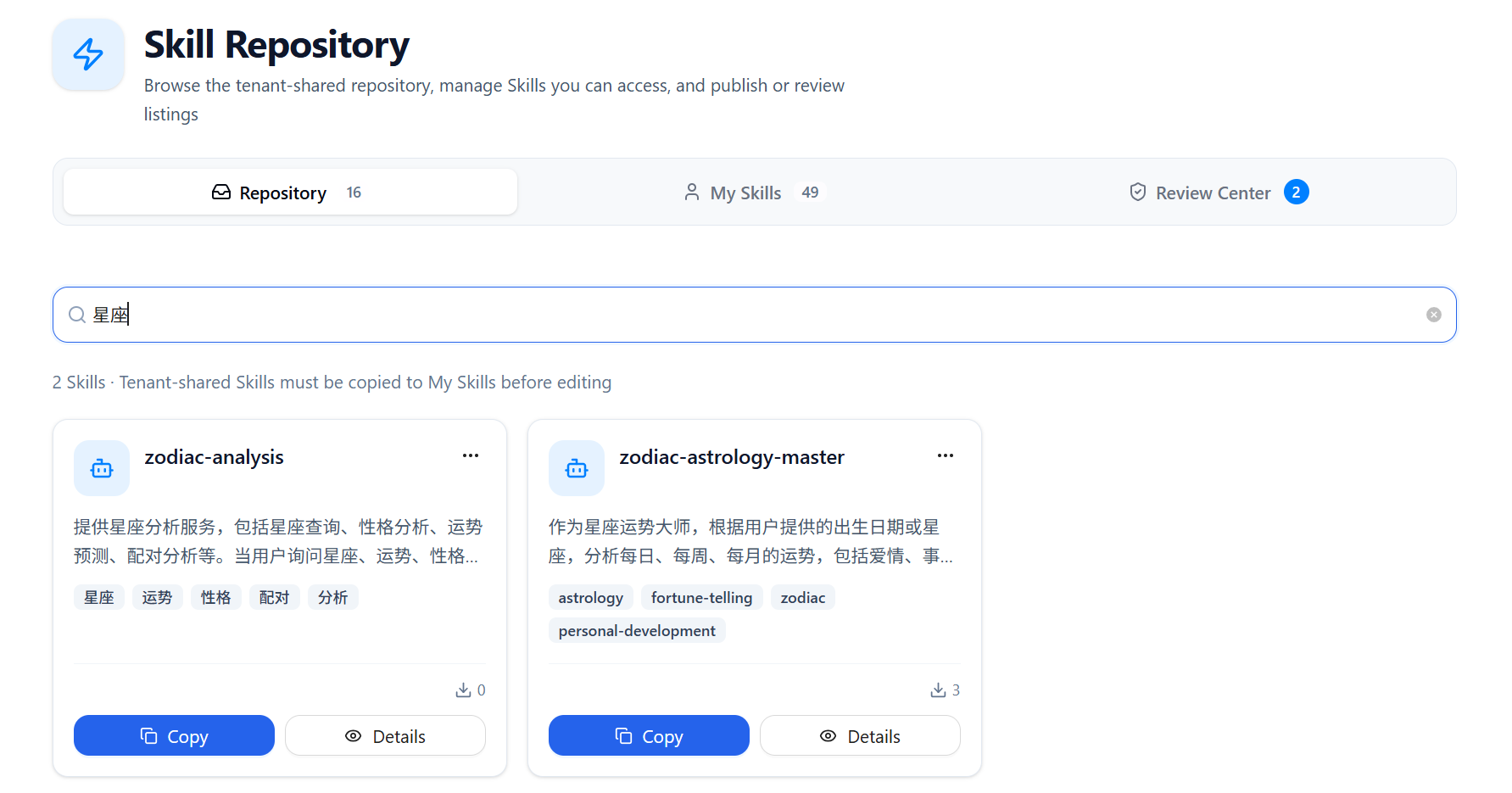
The Repository tab lists Skills that have been listed and shared within the current tenant. Developers and admins in the current tenant can browse them, view their details, and copy them to My Skills before editing.
A shared Skill must be copied to My Skills before it can be edited.
Browse and Search
- Browse listed Skills as cards
- Search by Skill name, description, or tag
- Cards show a summary such as name, description, tags, source, and download count
View Details
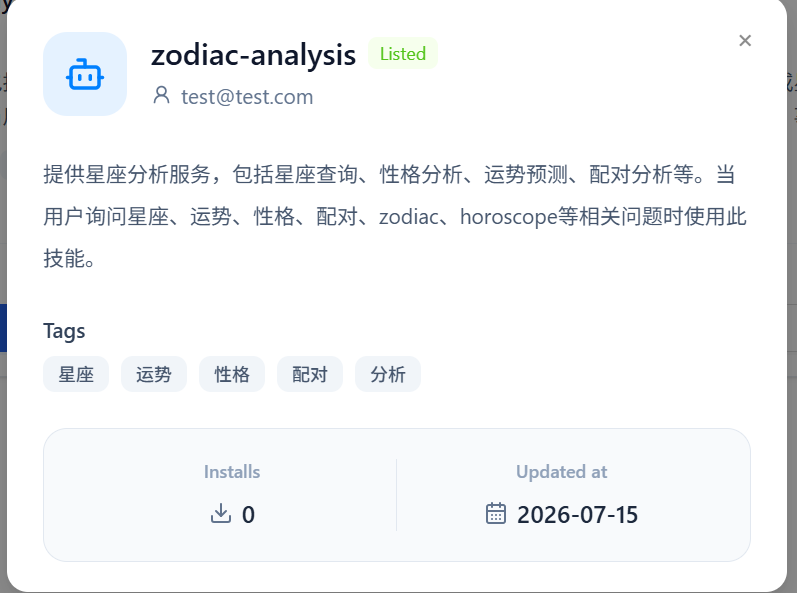
Click Details on a Skill card to view its basic information, including its name, creator, description, tags, install count, and last updated time. Details are read-only; copy the Skill to My Skills to make changes.
Copy a Skill
- Click Copy on the target Skill card.
- Enter a new Skill name. If the name already exists, choose another name and try again.
- After copying, the Skill appears in My Skills, where you can edit it, configure it, or apply for listing.
Admin Take-Down
Admins can choose Take Down from the more-actions menu on a repository Skill card. The Skill is then no longer available for developers and admins in the current tenant to browse or copy. Existing personal copies are not affected.
🧑 My Skills
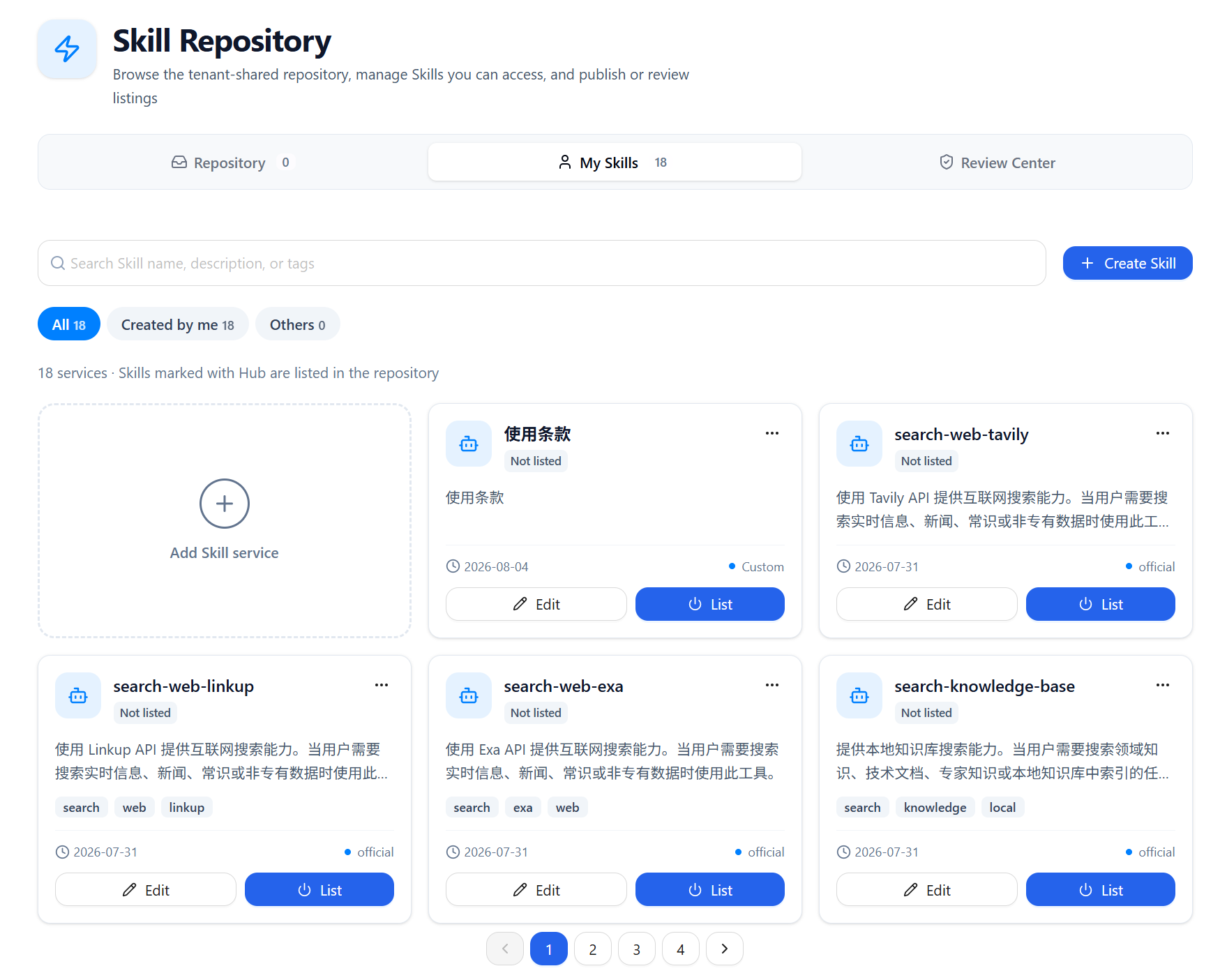
Use My Skills to manage Skills that you can edit, including Skills you created and Skills for which you have been granted edit permission.
Filter and Search
- All / Created by me / Others filters Skills by ownership
- Search by Skill name, description, or tag
- Browse Skills as cards with pagination
Create, Upload, and Edit
Click Create Skill from My Skills to choose one of the following:
- Interactive creation: Work with the Skill builder through natural language to generate or improve a Skill.
- Upload a Skill file: Upload a single
SKILL.mdfile or a ZIP archive containing the complete Skill structure.
Use Edit on a Skill card to update its name, description, tags, group permissions, SKILL.md body, and additional files. See the Skill Upload Guide for file-format and upload rules.
Apply for Listing
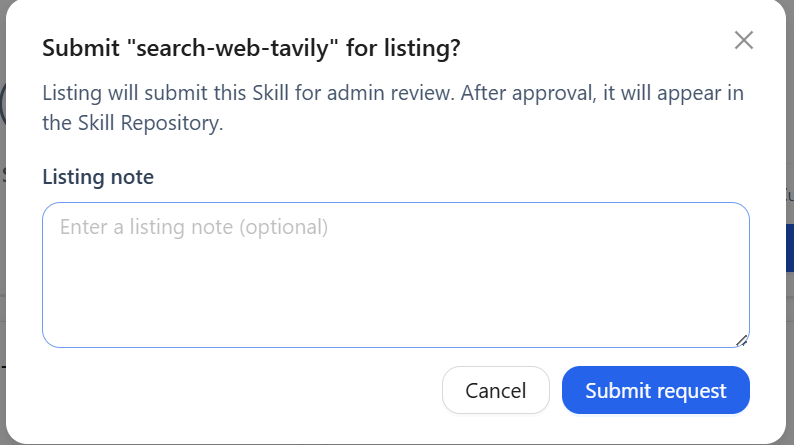
You can apply to list a Skill that you are allowed to edit in the tenant repository:
- Click List on the Skill card.
- Optionally provide a listing note to help the admin understand the request.
- Click Submit request and wait for an admin review.
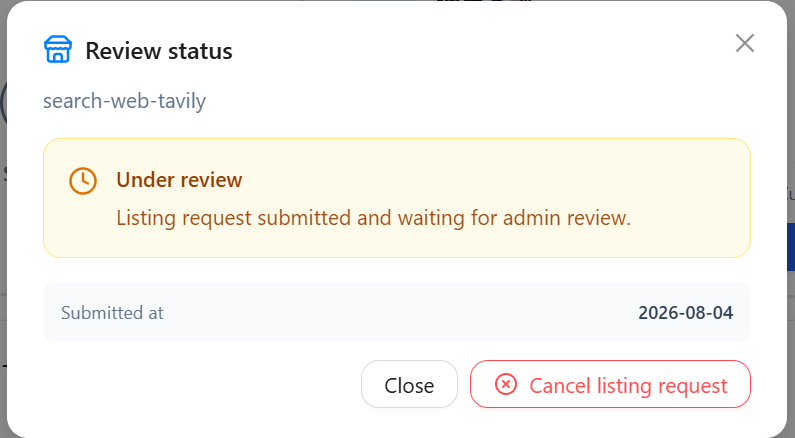
The card shows Pending review after submission. A Skill has only one pending listing record at a time.
View Review Progress
Open the review-status dialog from a Skill with a submitted request to view its status, submission time, listing note, and reviewer comment (when provided).
- Pending review: You can cancel the listing request.
- Listed: You can take the Skill down.
- Rejected: Edit the Skill first, then cancel the current listing request and click List again to resubmit.
✅ Review Center
The Review Center is available only to admins and is used to process Skill listing requests submitted by developers in the current tenant.
Pending Review Queue
The queue shows information such as the Skill name, submitter, listing note, and submission time. The tab badge shows the number of requests waiting for review.
Review Actions
- Click Details to inspect the Skill's basic information.
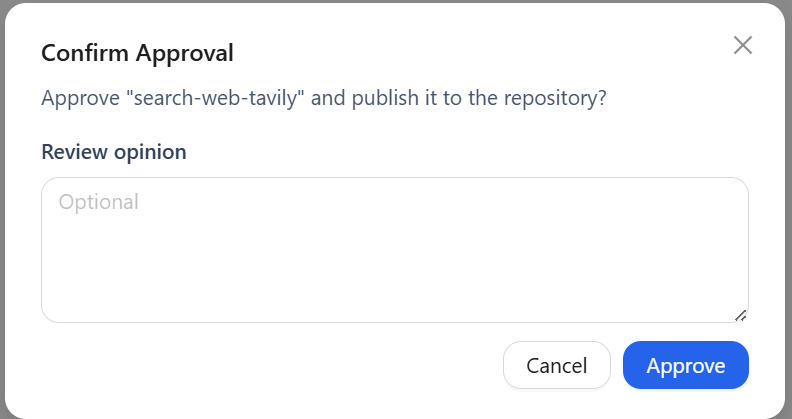
- Click Approve and confirm to list the Skill in the Repository.
- Click Reject to optionally add a review comment. The submitter can view the comment in My Skills, update the Skill, and submit a new request.
Using Skills
Configuring Skills for an Agent
- Open the Agent Development page.
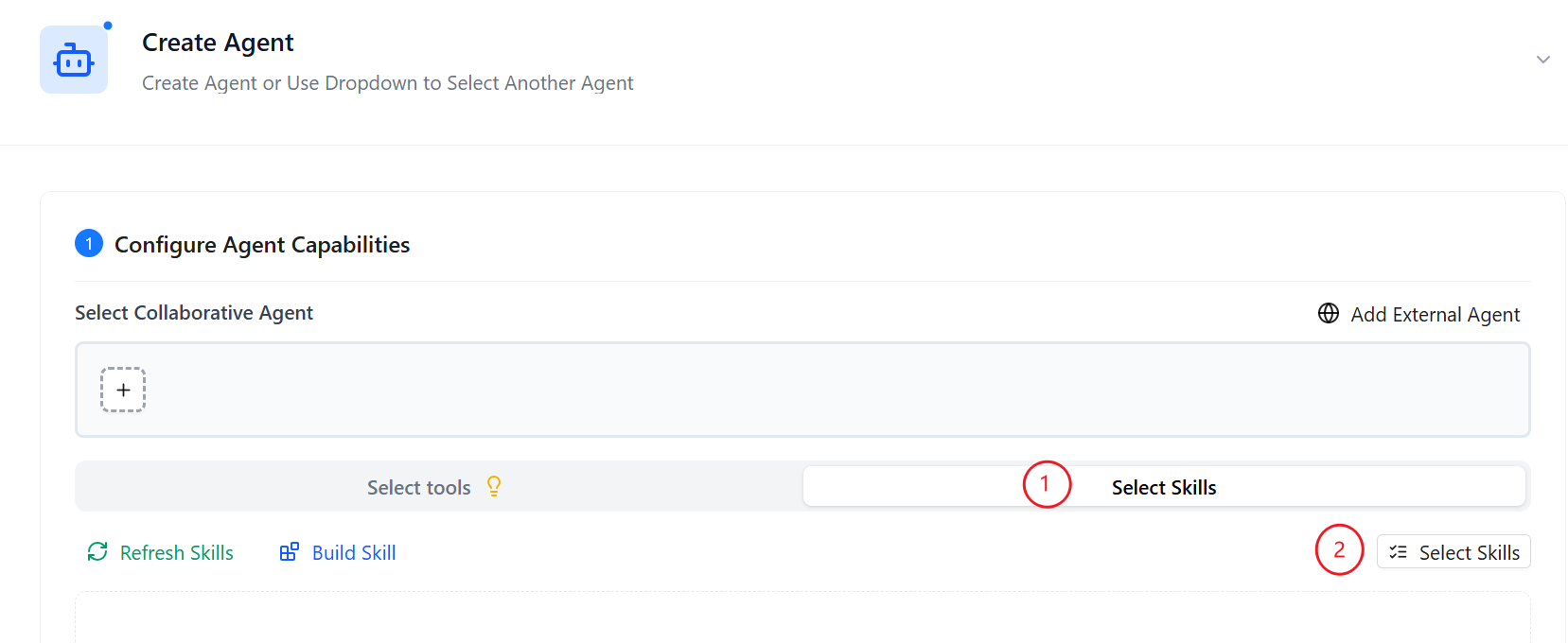
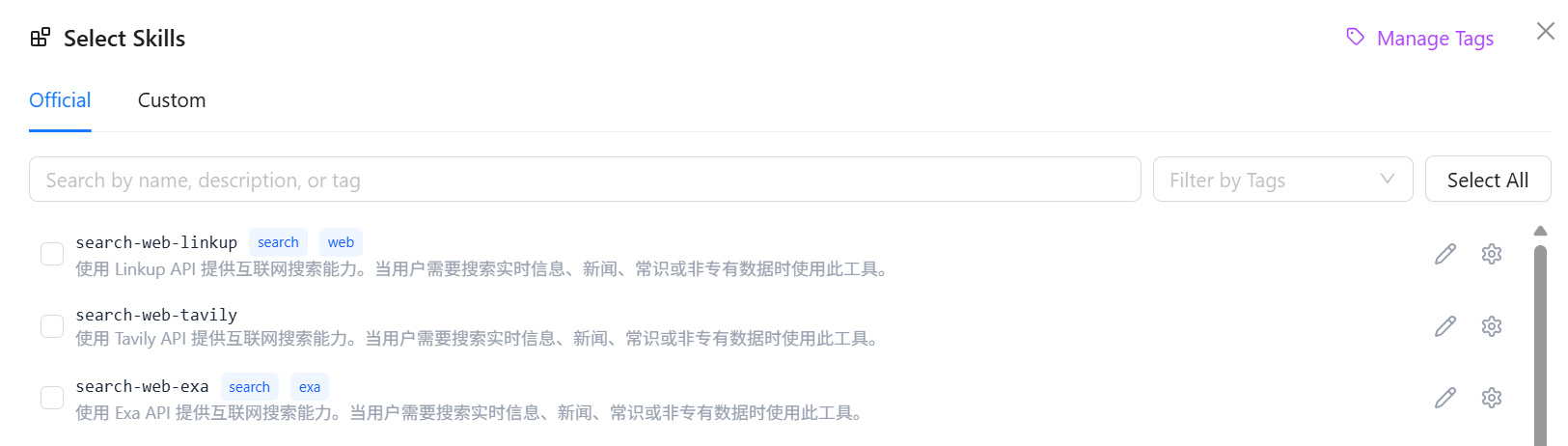
- In Select Tools, switch to the Skills tab and click Select Skills.
- Select the Skill you want to configure; select it again to remove it.
- If the Skill has required parameters, its configuration dialog opens automatically. Complete and save the parameters before the Skill is added to the current agent.
- For an added Skill, click the gear icon to update the parameters used by the current agent.
- Save the agent configuration.
Viewing Installed Skills
The Skills tab in Select Skills lists the official and custom Skills available to the current tenant. You can add them to the current agent from this tab.
Different agents can save separate parameter configurations for the same Skill.
Skill Upload Guide
Skill Package Structure
A skill can be a single file or a ZIP package containing multiple files:
skill-name/
├── SKILL.md              # Skill definition file (required)
├── config/
│   ├── config.yaml       # Default parameter values
│   └── schema.yaml        # Parameter types and descriptions
├── scripts/
│   └── *.py              # Python scripts
├── examples.md            # Usage examples
└── assets/                # Static assets
SKILL.md Format in Detail
SKILL.md is the core file of a skill, consisting of a YAML frontmatter section and a body section.
YAML Frontmatter (required)
The file must start with YAML frontmatter:
---
name: skill-name
description: |
  A description of what this skill does and when to use it.
  Write in third person.
tags:
  - tag1
  - tag2
---| Field | Required | Description | Example |
|---|---|---|---|
name | Yes | Skill name; English only, lowercase, hyphenated | github-repo-analyzer |
description | Yes | Skill function description; 1-3 sentences, include use case | This skill analyzes GitHub repositories and extracts key metrics |
tags | No | Skill tag list for categorization and search | ["code", "github", "analysis"] |
allowed-tools | No | List of allowed tools (all available by default) | [file_read, web_search] |
always | No | Whether to auto-activate on every turn (default: false) | false |
Body (optional)
Below the frontmatter, you can write Markdown content including usage instructions, best practices, example code, and more.
Two Skill Types
Based on their purpose, skills fall into two categories with different writing styles:
Tool Skills: Used to expose tool capabilities. The body should include tool parameter descriptions, usage examples, return formats, and error handling.
Agent Skills: Used to teach the agent how to perform a complex task. The body should include workflow instructions, domain knowledge, boundary conditions, and best practices.
config/schema.yaml: Defining Parameter Forms
If a skill requires user-supplied parameters, create a config/schema.yaml file. The system will auto-generate a parameter configuration form in the frontend based on this file.
param_name:
  type: string | number | boolean | array | object
  required: true | false
  default: <default value>
  description: "English description of the parameter"
  description_zh: "Chinese description of the parameter"
Supported types: string, number, boolean, array, object
Complete example:
query:
  type: string
  required: true
  description: "Search query string"
  description_zh: "Search keyword"
  default: ""

top_k:
  type: number
  required: false
  description: "Number of results to return"
  description_zh: "Number of returned results"
  default: 3

enable_rerank:
  type: boolean
  required: false
  description: "Enable result reranking"
  description_zh: "Whether to enable result reranking"
  default: false
config/config.yaml: Setting Parameter Defaults
If you want certain parameters to have default values, create config/config.yaml:
# Initial workspace path
init_path: "/mnt/nexent"

# Maximum number of results
top_k: 5
Special Tags
You can use the following special tags in the SKILL.md body:
<reference>: Lazy-loading Example Files
Use the <reference> tag to reference external files. The referenced file is loaded only when needed, keeping the main SKILL.md file lightweight.
## Example Reference

> **Note**: Only load the reference example file when the default Usage examples cannot meet your needs.

<reference path="examples.md" /><use_script>: Declaring Bundled Scripts
If the skill package contains Python or Shell scripts, declare them in SKILL.md:
<use_script path="scripts/analyze.py" /><code>: Displaying Executable Code Examples
Use the <code> tag to wrap executable code examples (usually Python code):
<code>
result = run_skill_script(
    "code-reviewer",
    "scripts/analyze.py",
    {"--target": "/path/to/file.py", "--verbose": True}
)
print(result)
</code>
Helper Functions
In agent skill bodies and examples, you can use the following functions:
run_skill_script(skill_name, script_path, params): Execute a script bundled in the skill package
# Execute a Python script
result = run_skill_script(
    "code-reviewer",
    "scripts/analyze.py",
    {"--target": "/path/to/file.py"}
)

# Execute a Shell script
result = run_skill_script(
    "database-migration",
    "scripts/migrate.sh",
    {"--direction": "up", "--steps": 1}
)
read_skill_md(skill_name, files): Read files from the skill package
# By default, only reads SKILL.md (referenced files are not auto-included)
content = read_skill_md("my-skill")

# Explicitly specify which files to read
full_content = read_skill_md("my-skill", [
    "SKILL.md",
    "reference/api-reference.md"
])
Writing Standards and Best Practices
SKILL.md Writing Standards:
Be specific: Explain when to use the skill, not just what it does
- ✓ "Used when you need to analyze GitHub repository popularity metrics"
- ✗ "GitHub search function"
Avoid time-sensitive information: Do not include specific dates, version numbers, or other content that will become outdated
Stay concise: Keep the
SKILL.mdbody under 500 lines. Use<reference>for complex content that can be lazy-loadedPath format: Always use forward slashes
/, even on Windows- ✓
src/services/payment_service.py - ✗
src\services\payment_service.py
- ✓
Consistent parameter naming: Use the same terminology and naming style throughout
Include boundary conditions: Explain the skill's scope and limitations
Parameter Description Best Practices:
# ✓ Good: Clearly specify purpose and format
query:
  type: string
  required: true
  description: "GitHub repository owner/name or full URL"
  description_zh: "GitHub repository in owner/name format or full URL"

# ✗ Bad: Too vague
query:
  type: string
  required: true
  description: "Search query"
  description_zh: "Query"
Code Example Best Practices:
- Provide at least 2 different-scenario examples for each tool
- Include common parameter combinations in examples
- Demonstrate both successful calls and common error handling
Learning from Existing Skills
The system includes several complete skill reference examples in test_skill_examples/official-skills/:
| Skill Name | Reference Value |
|---|---|
create-file-directory | Standard writing for tool skills, with complete parameter tables, usage examples, and error handling tables |
search-knowledge-base | Parameter configuration for search skills, with complete schema.yaml and config.yaml examples |
analyze-image | Multimodal tool example with <code> call format |
code_review_expert | Agent skill reference with bundled scripts and <use_script> tag usage |
FAQ
Q: Upload reports "SKILL.md not found"
Make sure the SKILL.md file is in the ZIP package's root directory, not inside a subfolder.
Q: Parameter form didn't generate correctly
Check that config/schema.yaml is formatted correctly. Ensure each field has both type and description fields.
Q: Skill description isn't taking effect
The skill description should be written in the YAML frontmatter's description field, not in the Markdown body section. Body content is not parsed as the skill description.
NL-to-Skill
NL-to-Skill is an intelligent creation feature provided by Nexent. You simply describe a skill requirement in natural language, and the system automatically generates a complete skill package — including skill definition, parameter configuration, and even accompanying script code. The entire generation process is visible in real time, as if an AI assistant is writing code for you.
In simple terms:
You say "I want a skill that can search GitHub repositories and extract Star counts," and the system automatically generates a complete, usable skill for you.
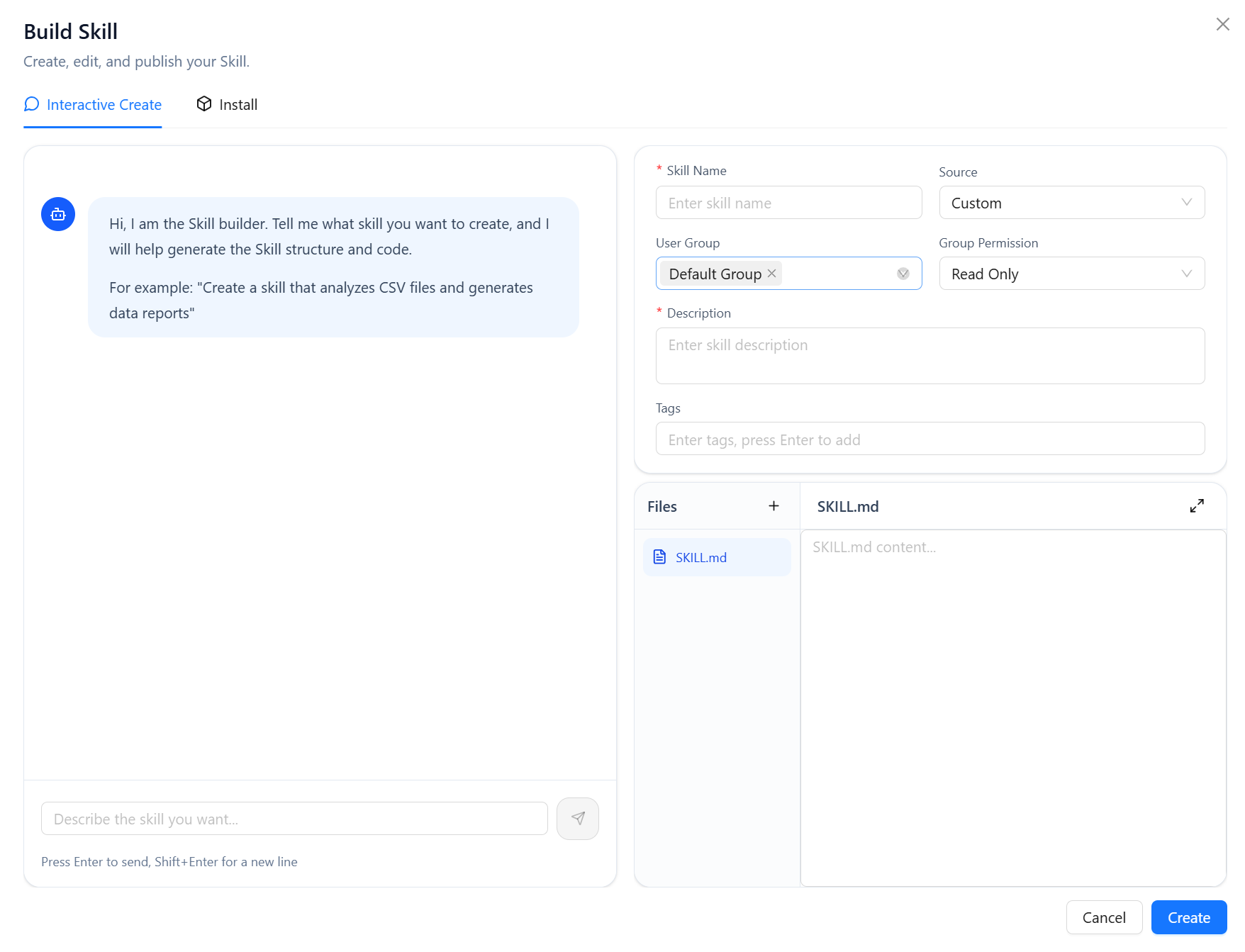
Quick Start
Step 1: Describe Your Requirement
In the input box, describe the skill you want in natural language. The clearer your description, the better the generated result.
Good examples:
- "Create a skill that searches GitHub repositories by keywords and returns Star counts, descriptions, and links"
- "Create a skill that reads an Excel file, calculates statistics for each column, and generates a chart"
- "Create a skill that extracts order numbers, amounts, and dates from emails and compiles them into a table"
Bad examples:
- "Help me make a chat skill" (too vague)
- "Search tool" (lacks specific capability description)
Step 2: Watch the Generation Process
After clicking "Generate," the page displays the AI's thinking and writing process in real time:
- See the AI analyzing your requirement
- See it writing the skill definition file
- See it planning the parameter structure
This process is like watching AI write code live. You can click "Stop" at any time to interrupt.
Step 3: Preview and Save
After generation completes, the system displays the complete skill content:
- Skill name and description
- Parameter list (what each parameter is, whether required)
- Usage examples
Check the preview carefully:
- To make adjustments, click "Edit" to fine-tune
- If it meets your expectations, click "Save" to add the skill to your skill library
Writing Tips
How to Write a Good Skill Description
1. Clarify inputs and outputs
Tell the system what information the skill needs and what it will return.
✓ "Input a GitHub repository address; return the repository name, Star count, Fork count, and last update time"
✗ "Search GitHub" (too vague)
2. Explain the use case
Help the AI understand in what situations this skill would be used.
✓ "Used to quickly query the popularity of open-source projects and assist with technical selection decisions"
✗ "Get data" (no context)
3. Describe boundary conditions
If there are special processing logic or limitations, mention them.
✓ "If the repository doesn't exist, return a friendly message instead of an error"
✓ "Skip invalid image URLs and log them"
4. Explicitly request examples
If the skill has complex usage scenarios with high accuracy requirements, explicitly request detailed examples.
✓ "Generate comprehensive and detailed usage examples"Usage Scenario Examples
| Scenario | Description Example |
|---|---|
| Data collection | "Search Zhihu for Q&A related to the keywords and extract summaries of the highest-liked answers" |
| File processing | "Upload a CSV file; automatically calculate statistics for each column and generate a line chart" |
| API encapsulation | "Create a skill that calls a weather API and returns a three-day forecast" |
| Multi-tool combination | "Input a product link; automatically compare prices (calling multiple e-commerce searches) and return the lowest-price link" |
| Data cleaning | "Read a messy text block; extract emails, phone numbers, and dates, and format the output" |
What You Can Do During Generation
Real-time Preview
During generation, skill content progressively appears in the preview area:
SKILL.mdcontent: skill definition, description, tagsexamples.md: skill usage examplesscripts/*.py: tool scripts (in complex mode)
Stop Anytime
If the generation direction deviates from expectations:
- Click the "Stop" button; the AI immediately stops
- Existing generated results are preserved; you can review or discard them
Multiple Attempts
If the first generation result is unsatisfactory:
- Directly add more requirement details; modify based on the existing result
- Or manually adjust in the preview
- If you want to start completely fresh, click the "trash" icon in the upper right corner to clear all skill content
Limitations and Notes
Model Capability Affects Quality
NL-to-Skill uses the LLM model configured for your tenant to generate skills. The model's capability directly determines the generation quality:
- Smarter models accurately understand requirements and generate well-structured, easy-to-understand skills
- Weaker models may produce incomplete or misleading content, affecting agent efficiency and accuracy
If the generation result is unsatisfactory, try:
- Simplify the requirement description
- Switch to a smarter, more capable model
- Create in steps (make a simple version first, then manually expand)
Token Consumption
Complex skill generation consumes more tokens:
- Simple mode: Usually consumes less; suitable for quick validation
- Complex mode: Consumes more; suitable for formally creating complete skills
It is recommended to first test the idea in simple mode, then use complex mode for formal creation after confirming feasibility.
Not All Requirements Can Be Realized
NL-to-Skill excels at generating skills for:
- Single tool wrapping (e.g., encapsulating a search capability)
- Simple multi-tool chaining (e.g., search → read → summarize)
- Common data processing flows (e.g., file format conversion, data extraction)
The following types of skills may be beyond its capabilities:
- Requiring external APIs that are not integrated
- Involving complex state management or concurrency logic
- Requiring access to underlying platform interfaces that are not open
When encountering requirements that cannot be fulfilled, the system will provide a prompt. You can consider creating manually or contacting technical support.
Modifying Skills
In My Skills, find the Skill you want to change and click Edit. On the agent configuration page, you can also click the pencil icon for a Skill that you are allowed to edit. The system loads its basic information, SKILL.md body, and additional files. You can use the interactive creation view to refine the content with natural language, or edit the files directly and save your changes.
When creating or uploading a Skill, if its name already exists, the system prompts you to change the name before submitting again.
Official Skills Overview
File Operations
| Skill Name | Description | Main Tools |
|---|---|---|
read-file | Read file content and metadata within the workspace | read_file |
create-file-directory | Create files or directories | create_file, create_directory |
delete-file-directory | Delete files or directories (irreversible) | delete_file, delete_directory |
move-file-directory | Move or rename files/directories | move_item |
list-directory | List directory structure in a tree view | list_directory |
Knowledge Base Search
| Skill Name | Description | Main Tools |
|---|---|---|
search-knowledge-base | Local knowledge base semantic search | knowledge_base_search |
search-dify | Dify knowledge base search (supports semantic / keyword / full_text / hybrid modes) | dify_search |
search-idata | iData knowledge base search | idata_search |
search-datamate | DataMate knowledge base search (with similarity threshold control) | datamate_search |
Web Search
| Skill Name | Description | Main Tools |
|---|---|---|
search-web-tavily | Tavily real-time web search | tavily_search |
search-web-linkup | Linkup image and text mixed search | linkup_search |
search-web-exa | Exa deep web search | exa_search |
Multimodal Analysis
| Skill Name | Description | Main Tools |
|---|---|---|
analyze-image | VLM-based image content analysis and Q&A | analyze_image |
analyze-text-file | PDF/Word/Excel file content extraction and Q&A | analyze_text_file |
Communication and Remote Operations
| Skill Name | Description | Main Tools |
|---|---|---|
email-utils | IMAP receive / SMTP send (supports HTML / CC / BCC) | get_email, send_email |
run-shell-ssh | Persistent SSH session for remote command execution | terminal |
Security and Best Practices
- Knowledge base access control: When importing skills containing knowledge base tools, actual search scope is limited by the current user's permissions
- Web search: Tavily / Linkup / Exa web search requires the corresponding API Key to be configured in the platform security settings first
- Path security: File operations within skill packages are limited to the skill directory scope and cannot access arbitrary system paths
- Irreversible operations: Delete and move operations are irreversible; confirm the target before executing
- NL-to-Skill Token consumption: Complex skill generation consumes more model tokens; it is recommended to test in simple mode first